 VYS TV
iPhone app for Android TV and Google TV
Your TV fast again, with only your own apps
VYS TV replaces the busy home screen of your Android TV or Google TV with a calm, fast home screen showing the apps you choose. You set it up with the app on your iPhone, which then also becomes your remote control.
- One-time purchase, no subscription
- No recommendations or ads on the home screen
- Measured before and after
- Always back to the original
What VYS TV does
After a few years an Android TV gets slow: apps you never open run in the background, and the home screen is mostly advertising for films and services. VYS TV cleans that up, without you losing anything.
Your own home screen
Rows with the apps you use, in your order, with your own titles, a background photo and the clock. No recommendations, no ads.
Faster
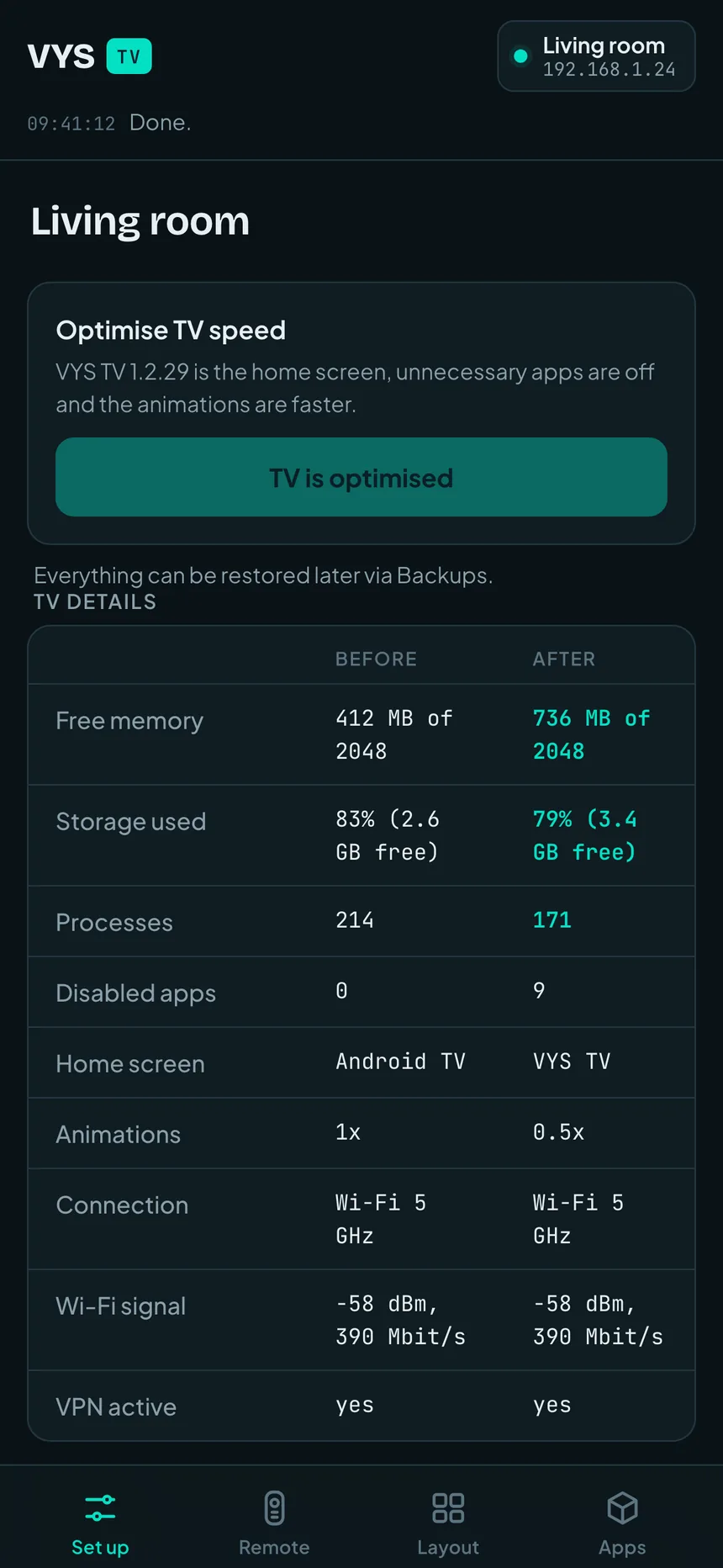
Unnecessary apps and recommendations are turned off, streaming apps no longer run silently in the background and animations are faster. The app measures memory, storage and processes before and after.
Remote control on your iPhone
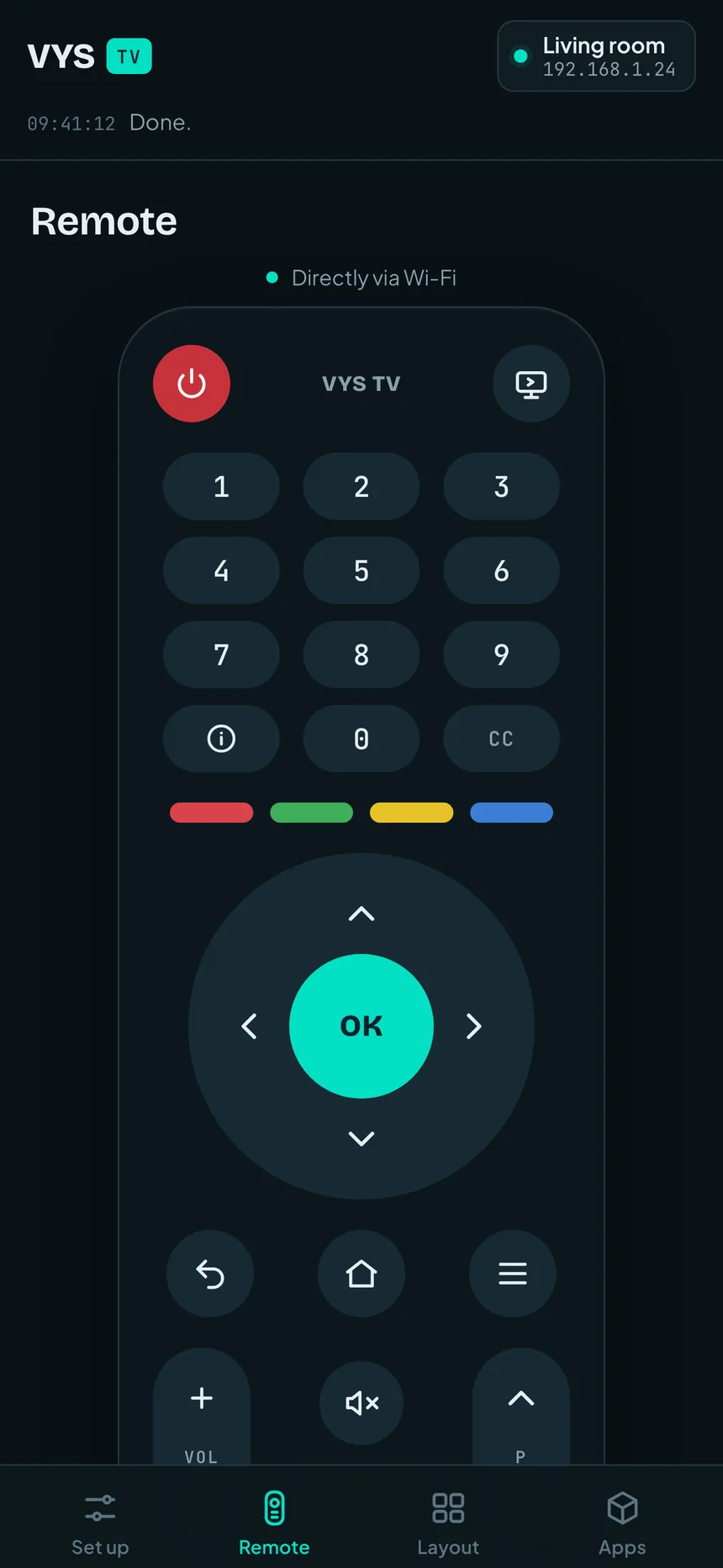
All the keys of your remote, typing text into a search field on the TV and taking a screenshot of the TV. Directly via Wi-Fi.
Profiles
Up to five profiles, each with its own rows, apps and background. When turned on, the TV asks who is watching, or starts with the default profile.
Manage apps
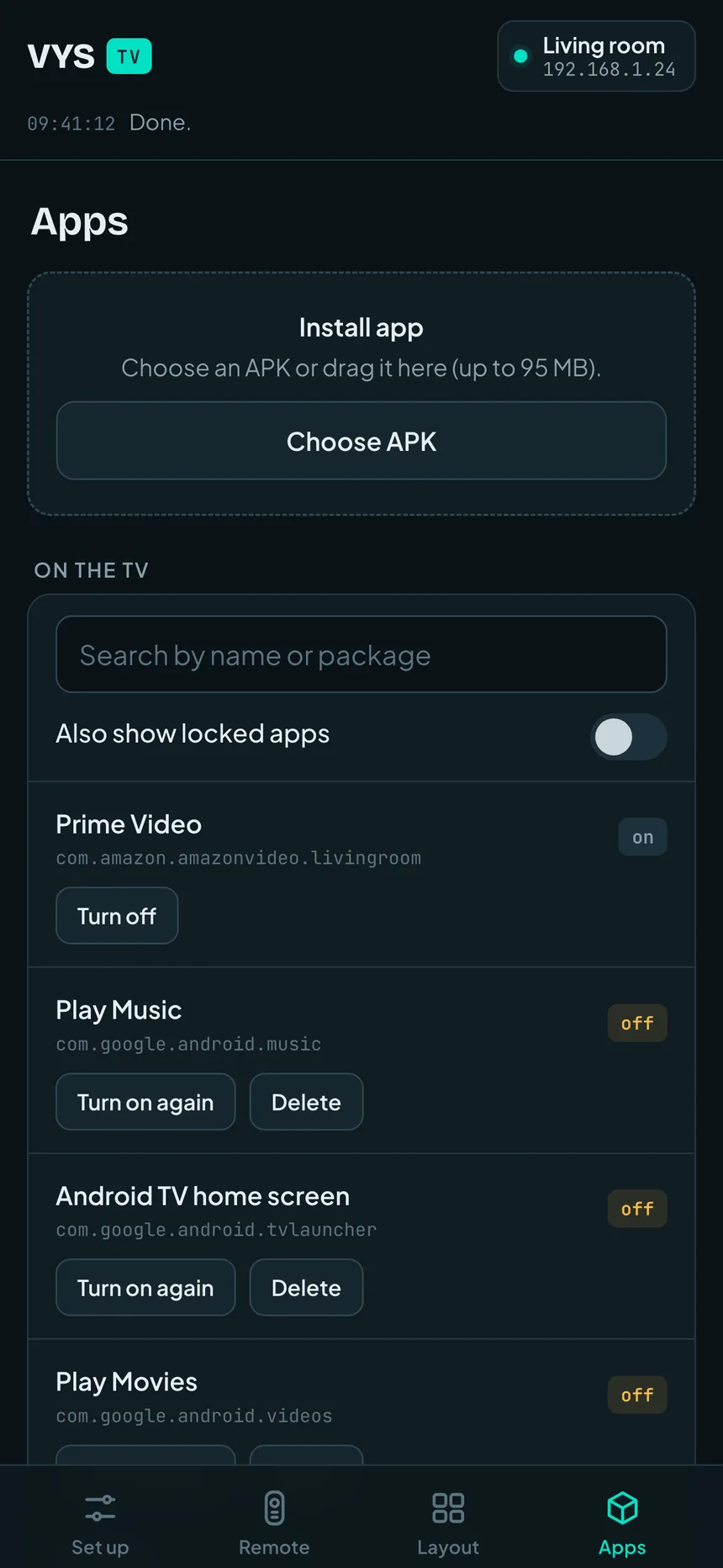
Turn apps off or on again, and install an app that is not in your TV's store (APK, XAPK or APKS). Parts the TV needs stay locked.
Always a way back
On the first connection the app makes a backup of your TV's original, and another one before every change. With Back to original everything is as it was.
What it looks like
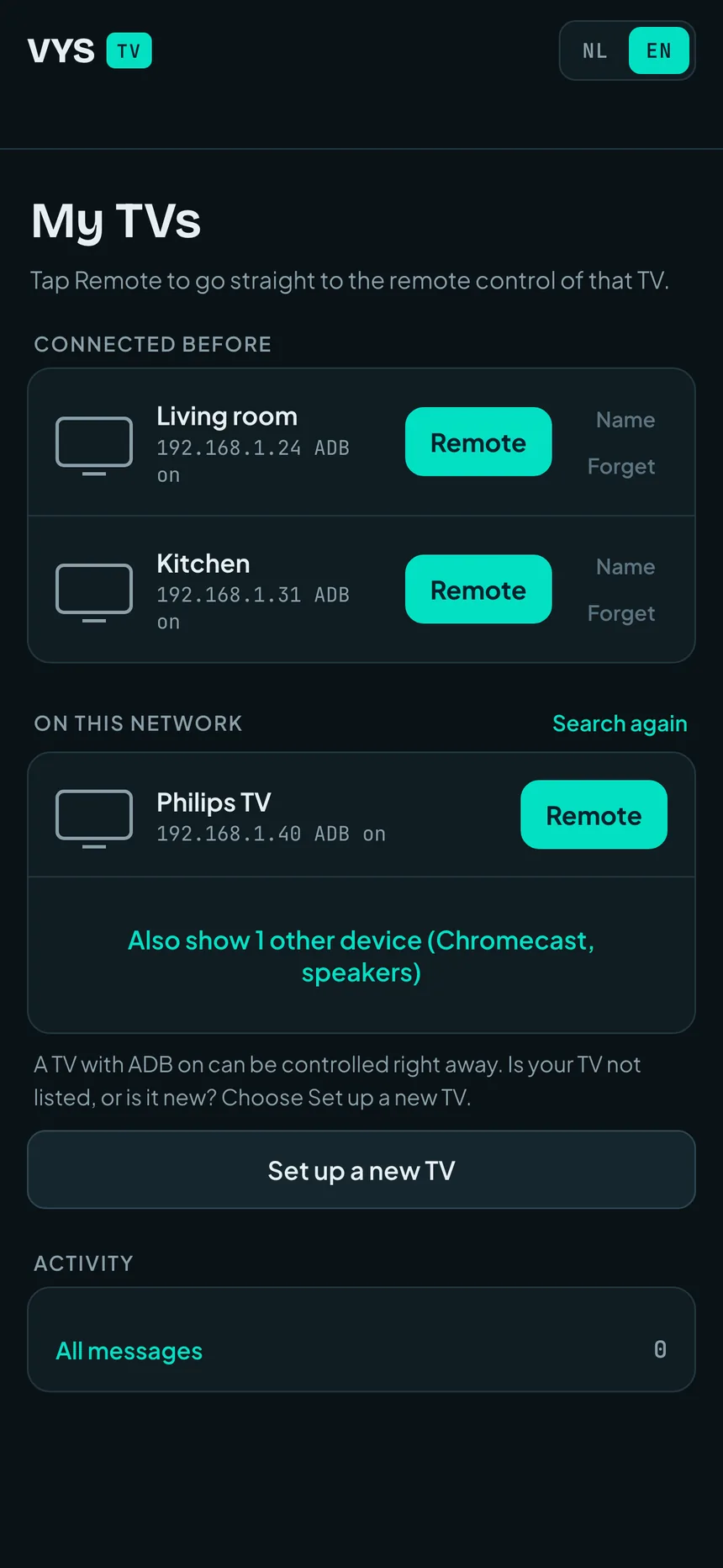
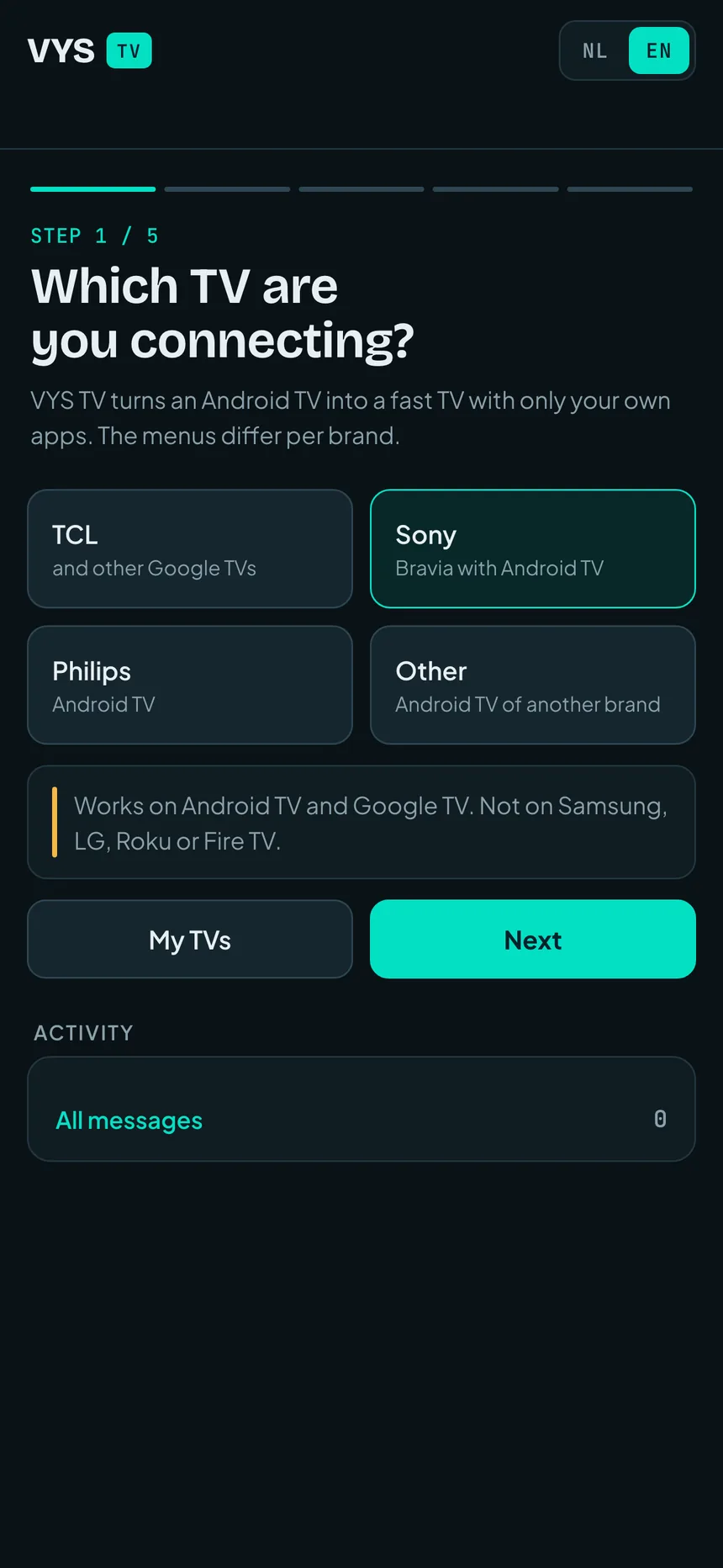
The app on the iPhone: finding TVs on your network, setting up, controlling and managing apps.
How it works
A few minutes once, with the remote control at hand. After that you do everything from your iPhone.
Choose your TV
Open the app and choose the brand of your TV: TCL and other Google TVs, Sony, Philips or another brand.
Turn on debugging
Turn on the developer options and USB debugging on the TV. The app shows exactly where to find them for each brand.
Connect via Wi-Fi
The app finds the TV on your home network. On the TV you choose Always allow once.
Optimise
Tap Optimise TV speed. Then arrange the home screen, choose profiles and control the TV.
Does it work on your TV?
Works on
- Android TV and Google TV
- Sony Bravia with Android TV or Google TV
- Philips with Android TV
- TCL and other TVs with Google TV
- Android TV boxes
Does not work on
- Samsung (Tizen)
- LG (webOS)
- Roku
- Amazon Fire TV
- Apple TV
You need an iPhone with iOS 16 or later, on the same Wi-Fi network as the TV.
TCL TVs and your VPN
On TCL TVs, the TV Guard component closes apps in the background, including your VPN. As a result the VPN drops as soon as you open a streaming app. In VYS TV you turn off TV Guard with one button, and with Optimise TV speed your VPN apps may keep running in the background. Everything can be restored.
How to
Explanations about slow Android TVs and Google TVs, a VPN that keeps stopping, ads on the home screen and more.
VPN on your TV keeps stopping
Why a VPN on Android TV and Google TV drops when you switch apps, and what to do about it.
Slow Android TV: causes and solutions
Why an Android TV gets slow after a while, what you can do yourself and how VYS TV makes it fast again.
Slow Google TV: what happens and what helps
The Google TV home screen keeps loading recommendations and previews. How to make your TV fast again.
Removing ads from the Google TV home screen
Why the home screen is full of recommendations and ads, what the TV itself allows and how to keep only your own apps.
Enable developer options on your TV
For each brand, the steps to enable developer options and USB debugging, and where to find the IP address.
Install an APK on your TV
Put an app on your Android TV yourself (APK, XAPK, APKS), and what a message from the TV means.
Need help?
Answers to frequently asked questions and how to reach us.