 VYS TV
Support
Stuck? Below are the questions we get most often. If yours is not listed, e-mail or call us.
Step by step per TV
Choose your TV. You do this once, with the TV's remote at hand. The VYS TV app shows the same steps.
TCL and other TVs with Google TV
1. Turn on developer mode
- Press the Home button and go to the gear Settings (top right).
- Choose System and then About.
- Go to Android TV OS build and press OK 7 times.
- You will see "You are now a developer". If the TV asks for a PIN, enter the PIN of the TV or your Google account.
2. Turn on USB debugging
- Go back to Settings and choose System.
- Choose Developer options (at the bottom).
- Turn on USB debugging and confirm with OK.
- If you also see Network debugging or ADB over network, turn that on too.
3. The TV's IP address (only if the app does not find the TV)
- Go to Settings and then Network & Internet.
- Choose the network the TV is connected to (Wi-Fi or Ethernet).
- Read the IP address, for example 192.168.1.24.
On TCL TVs, TV Guard closes apps in the background, including a VPN. After connecting, tap Turn off TV Guard under Set up.
Sony Bravia (Android TV and Google TV)
1. Turn on developer mode
- Press the Home button and choose Settings.
- Choose Device Preferences and then About.
- Go to Build and press OK 7 times.
- You will see "You are now a developer".
2. Turn on USB debugging
- Go back to Device Preferences.
- Choose Developer options.
- Turn on USB debugging and confirm with OK.
- If you also see Network debugging, turn that on too.
3. The TV's IP address (only if the app does not find the TV)
- Go to Settings and then Network & Internet (or Network).
- Choose the connected network, or Advanced settings and then Network status.
- Read the IP address.
A Bravia with Google TV follows the Google TV steps above (System, About, Android TV OS build).
Philips with Android TV
1. Turn on developer mode
- Press the gear (Settings) and choose All settings.
- Choose Android settings, then About (under Device).
- Go to Build and press OK 7 times.
- You will see "You are now a developer".
2. Turn on USB debugging
- Go back to Android settings.
- Choose Developer options (under Preferences).
- Turn on USB debugging and confirm with OK.
3. The TV's IP address (only if the app does not find the TV)
- Press the gear and choose All settings, then Wireless and networks.
- Choose Wired or Wi-Fi and then View network settings.
- Read the IP address.
Older Philips TVs (Android 7) allow only one ADB connection at a time. If a computer is still connected to the TV, disconnect it first.
Other Android TVs and boxes
1. Turn on developer mode
- Open Settings on the TV.
- Find About or Info (often under System or Device Preferences).
- Press Build (or Android TV OS build) 7 times.
2. Turn on USB debugging
- Open Developer options (under System or Device Preferences).
- Turn on USB debugging.
- If you also see Network debugging or ADB over network, turn that on too.
3. The TV's IP address (only if the app does not find the TV)
- Open Settings, then Network.
- Choose the connected network and read the IP address.
4. Connect with the app
- Put your iPhone on the same Wi-Fi network as the TV (not a guest network).
- Open VYS TV, tap Set up a new TV, choose your brand and continue to Connect to the TV.
- Tap Find TVs on this network and choose your TV, or enter the IP address. The first time, the iPhone asks whether the app may use the local network: choose Allow.
- Tap Connect. The TV shows "Allow USB debugging?". Tick Always allow from this computer and choose OK.
5. Optimise and use it afterwards
- Under Set up, tap Optimise TV speed. VYS TV becomes the home screen, unnecessary apps and recommendations are turned off and the app measures the TV before and after.
- After that the TV is listed under My TVs. Tap Remote to control it right away; the app connects by itself.
- In Remote, tap Turn on fast control if it is shown. On the TV, VYS TV asks for permission once: tick Always allow and choose Allow. After that the keys go directly via Wi-Fi.
- Leave USB debugging on: the app needs it to control, update and restore the TV.
Finding the IP address of your TV
The app finds the TV on your network by itself. If it does not, or if you want to open the layout in a browser, you need the TV's IP address: four numbers with dots between them, such as 192.168.1.24.
Google TV (TCL, Sony with Google TV and others)
- Press Home and go to the gear Settings at the top right.
- Choose Network & Internet.
- Choose the network the TV is connected to: the name of your Wi-Fi, or Ethernet if the TV is connected with a cable.
- The IP address is listed with the details of that connection.
Android TV (Sony Bravia, Philips and others)
- Open Settings. Sony: the Home button and then Settings. Philips: the gear and then All settings.
- Choose Network & Internet or Network. Philips: Wireless and networks, then Wired or Wi-Fi and View network settings.
- Choose the connected network, or Advanced settings and then Network status.
- Read the IP address.
Other ways
- If VYS TV is already on the TV, the address is shown at the bottom of the home screen, in the line with :8080 and the code.
- In the app, under My TVs, the address is shown below the name of each TV.
- Your router's app or web page lists the devices on your network, usually with the name of the TV.
- After a router restart the TV may get a different address. If you do not want that, give the TV a fixed address in your router.
Changing the layout in a browser
Once VYS TV is on the TV, you can also change the home screen from a computer, tablet or phone, without the app.
- Where are the address and the code? At the bottom of the TV's home screen there is a line such as Change layout: http://192.168.1.24:8080 code 123456. The address and code are different for each TV.
- Open a browser on a device on the same network as the TV and type the address exactly, with http:// and :8080. It does not work from outside your home; that is intended.
- Enter the six-digit code and choose Open. After 5 wrong codes the page locks for 10 minutes.
- At the top, choose what to change: Profiles (up to five, and what the TV does when turned on), Home screen (drag apps into a row, the order, the text under a tile, the name of a row, + Add row), Display (title, subtitle, clock, the style Rows, Grid, Large or List, and a background photo), Remote control and Install apps.
- Choose Save to the TV. Only then is the new layout on the TV.
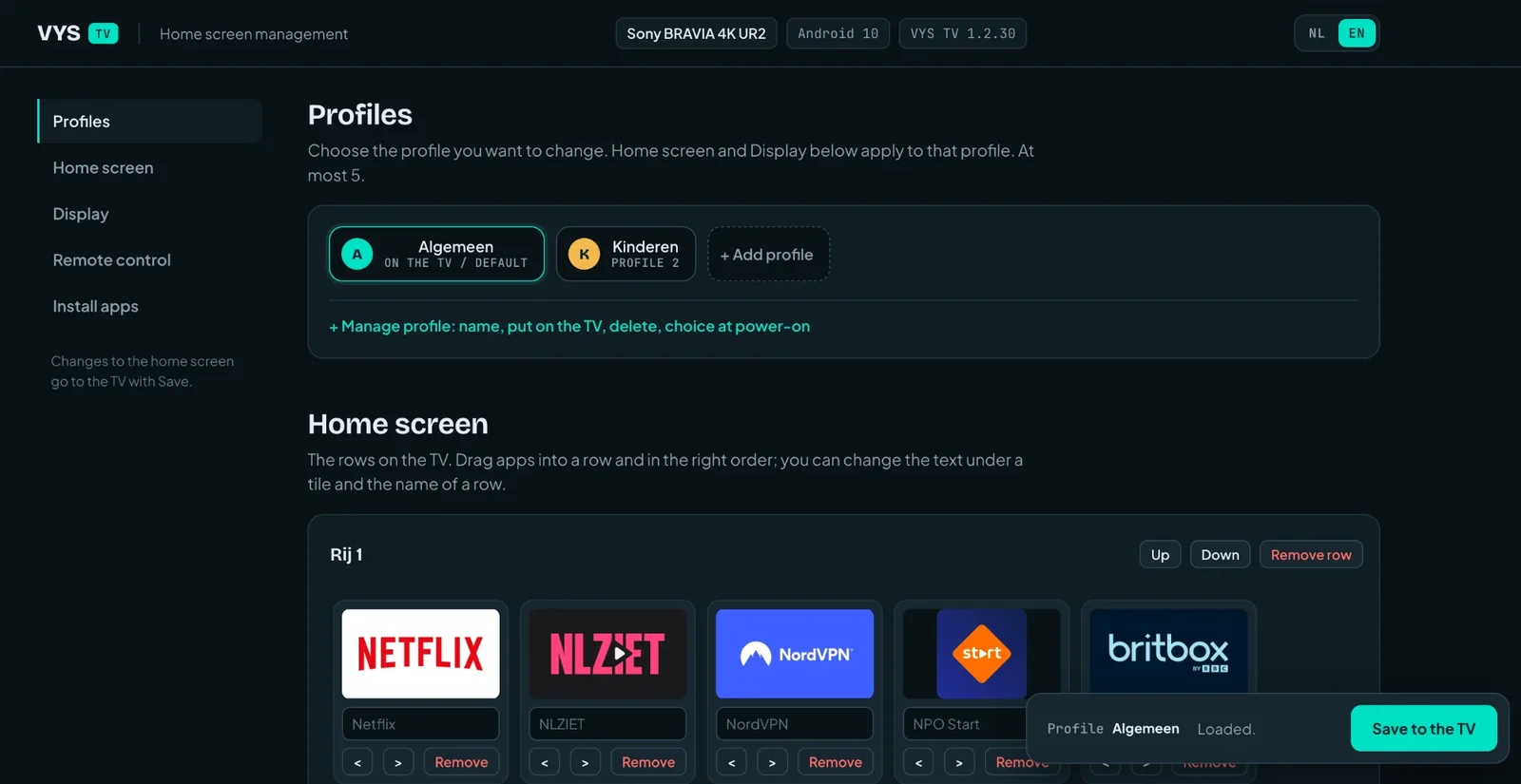
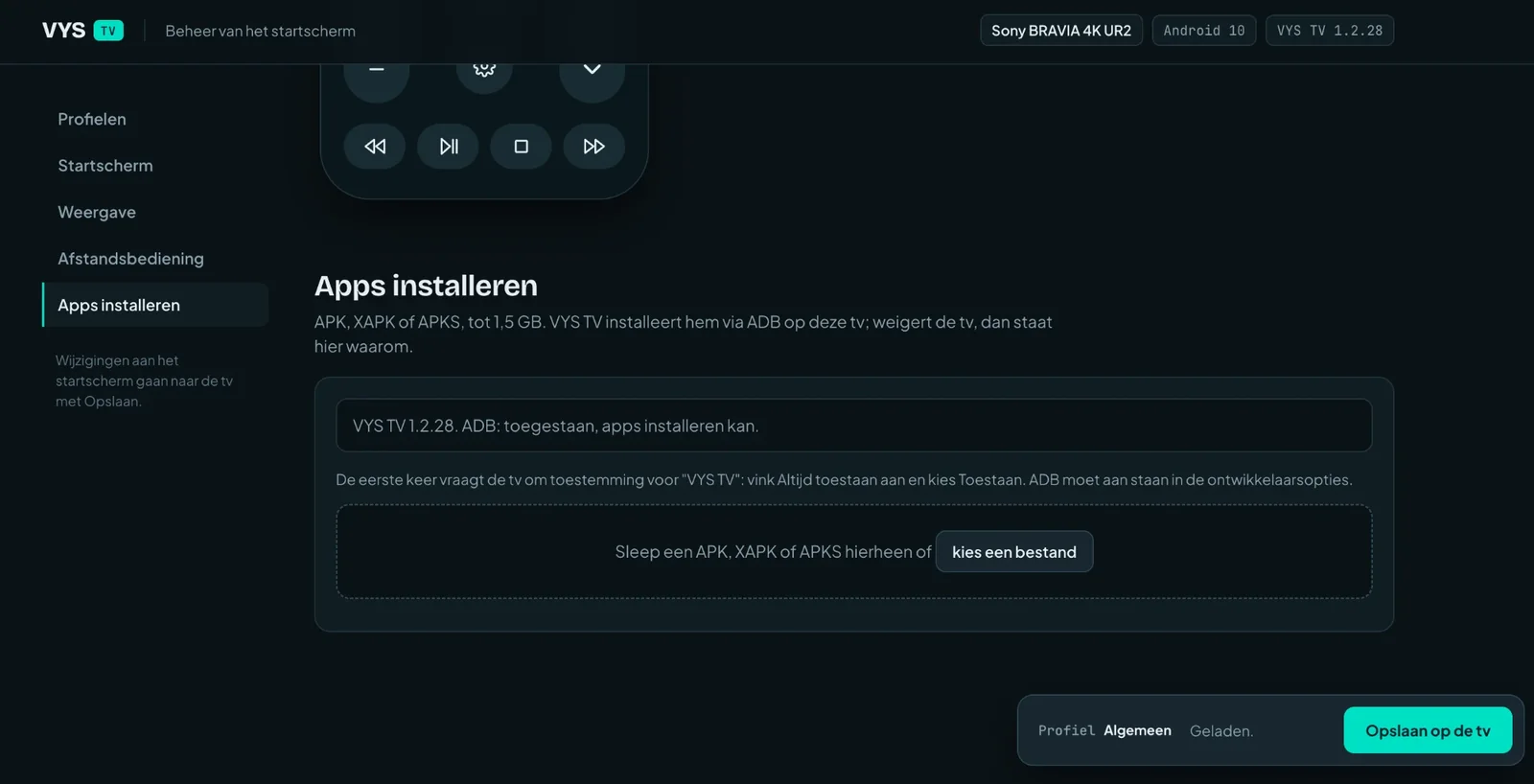
At the top right you choose NL or EN. If VYS TV was reinstalled, there is a new code: it is then shown at the bottom of the home screen. In the app the same works via the Layout tab, without a code.
Frequently asked questions
Does VYS TV work on my TV?
VYS TV works on TVs and boxes with Android TV or Google TV, such as Sony Bravia, Philips Android TV and TCL. Not on Samsung, LG, Roku, Amazon Fire TV or Apple TV: they use a different operating system.
The app does not find my TV
- Is the TV on, and is your iPhone on the same Wi-Fi network as the TV (not a guest network)?
- May the app use the local network? On the iPhone, check Settings, Privacy & Security, Local Network, VYS TV.
- If your TV shows "ADB off", turn on USB debugging on the TV (steps 2 and 3 in the app).
- You can also enter the TV's IP address yourself in step 4. The app shows where to find it for each brand.
The TV asks "Allow USB debugging?"
That is the one-time permission for your iPhone. Tick Always allow from this computer and choose OK. If you choose Deny or wait too long, tap Connect in the app again.
I do not see the developer options
They only appear after you press Build (or Android TV OS build) seven times in the About or Info menu. If the TV asks for a PIN, that is the PIN of your TV or your Google account. The app shows exactly where to go for each brand.
How do I get my old home screen back?
Open the app, connect to the TV and choose Back to original under Set up. On the first connection the app made a backup of your TV's original; with it the old home screen, the apps and the settings return and VYS TV is removed. Other backups are under Backups.
After an update or restart the old home screen is back
Some TVs restore their own home screen during a system update. Open the app, connect to the TV and tap Optimise TV speed. Your layout and profiles are still on the TV.
How do I install an app that is not in my TV's store?
Choose the Apps tab in the app and then Install app, or use the Layout tab. VYS TV installs APK, XAPK and APKS files. If the TV refuses, the reason is shown, for example a version for a newer Android or for another processor type. Only install apps from a source you trust.
My VPN keeps stopping on a TCL TV
TCL TVs have a component, TV Guard, that closes apps in the background, including a VPN. In the app, under Set up, there is a button Turn off TV Guard. If it is on again after a restart, use the button again.
The remote control responds slowly
If "Via the server" is shown above the remote, tap Turn on fast control and choose Always allow on the TV. After that the keys go directly via Wi-Fi.
A screenshot of the TV is black
Protected video, such as a film playing in a streaming app, may not be captured and therefore stays black. The rest of the screen works normally.
What data does VYS TV keep?
Only what is needed to set up and restore your TV, such as the backups of the layout. No account, no ads and no tracking. See the privacy policy.
Contact
E-mail us with the brand and model of your TV and what you see; a screenshot helps.